Amazon · Verified 14 hrs ago
$40 $60
free shipping
more
↑ less
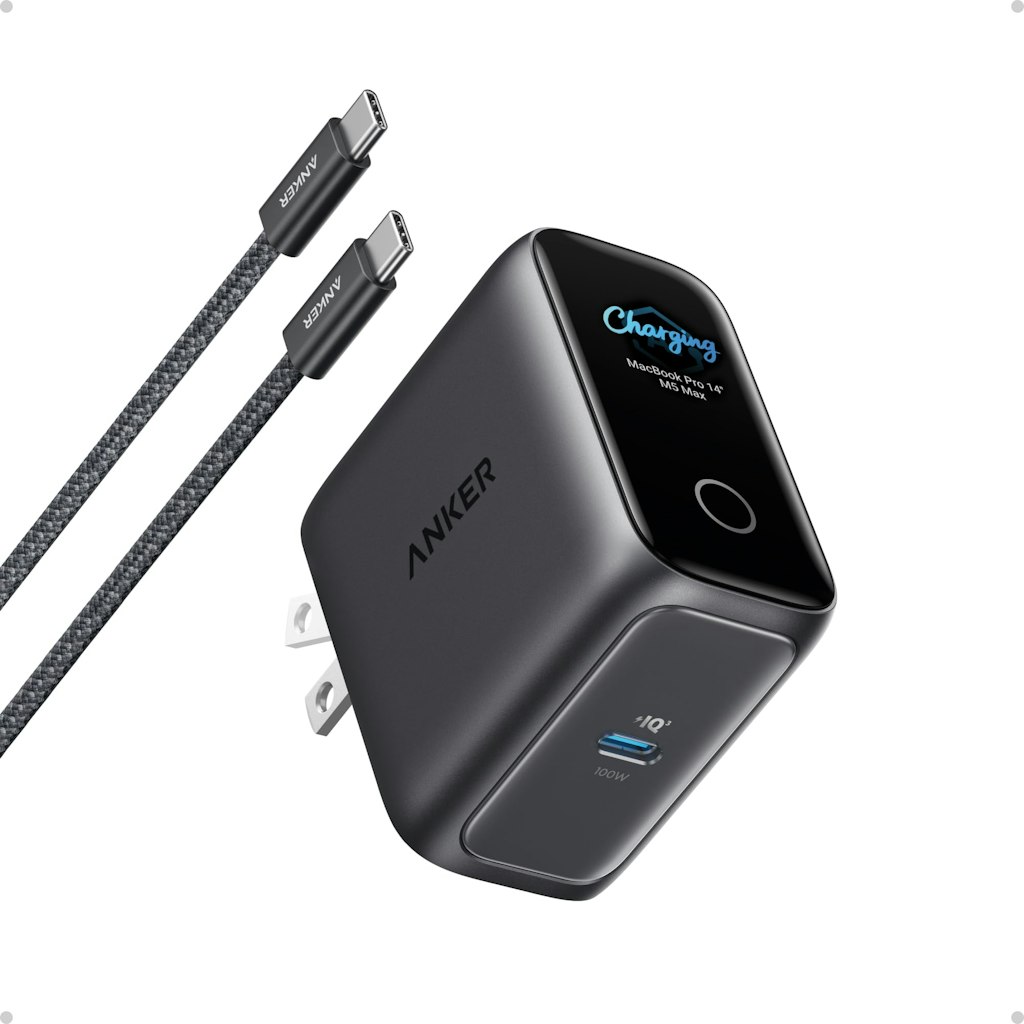
At Amazon, this Anker Laptop Charger Pro is $20 off and matches its Amazon all-time low of $40. It is also below its 90-day average of $56. The 100W charger recognizes supported devices including MacBooks, iPhones, iPads, and select Windows laptops with the Anker Charging Manager app, and a 5-ft. 240W USB-C cable is included. Shipping is free. Buy Now at Amazon
Features
- 100W max output over USB-C
- Built-in display shows charging power, temperature, & progress
- Auto Mode for fast charging & Care Mode for battery care
- Includes 5-ft. 240W braided USB-C to USB-C cable
- Foldable plug; 6.8 oz.
- 18-month warranty
Amazon · Verified 14 hrs ago
$75 $100
free shipping
more
↑ less
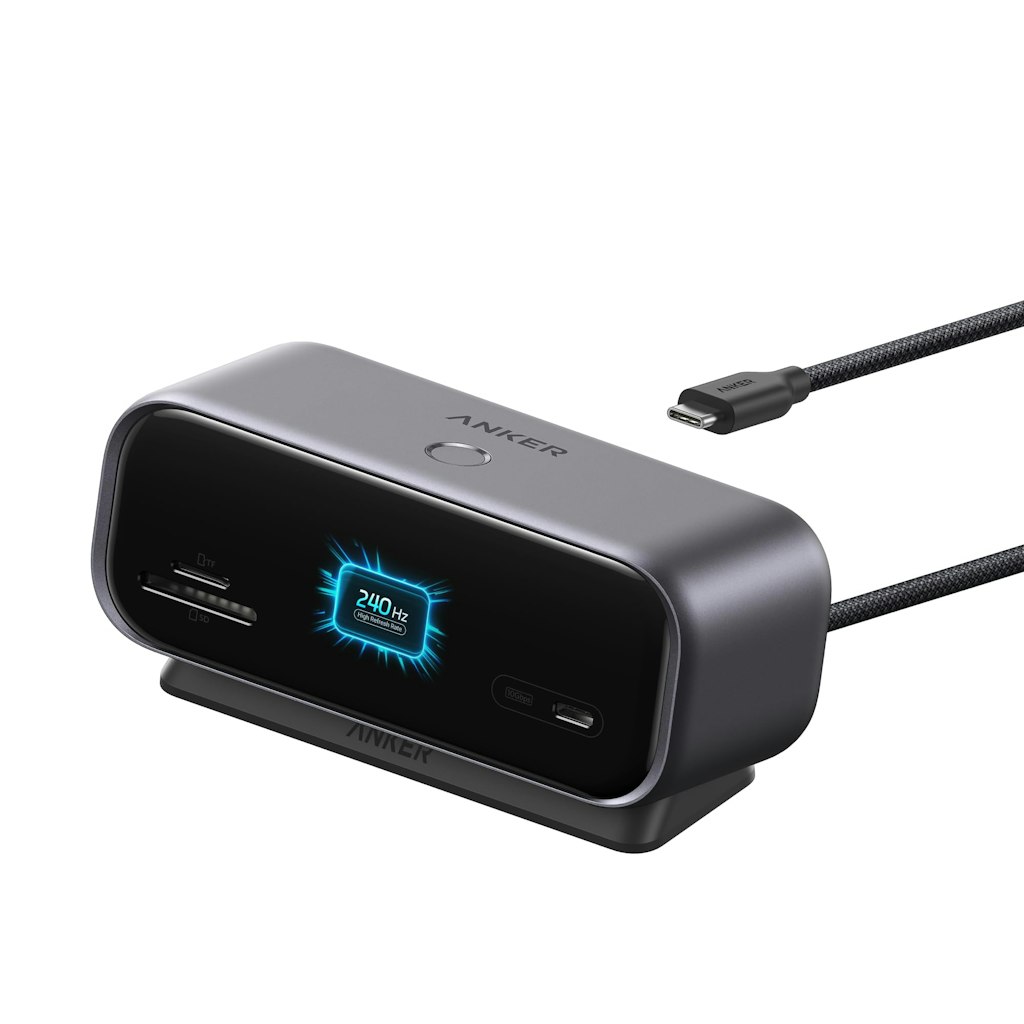
This Anker desktop USB-C hub matches its Amazon all-time low of $75 and sits below its 90-day average of $95. The built-in screen shows live port status and charging power, and the dock handles one 4K@144Hz monitor or dual 2K@240Hz displays on supported laptops. Windows laptops can run two monitors, while Macs mirror the same image on both. Shipping is free. Buy Now at Amazon
Features
- 10 ports: HDMI 2.1, DisplayPort 1.4, Gigabit Ethernet, USB-C & USB-A data ports, and SD/microSD slots
- Supports one monitor at up to 4K@144Hz or dual 2K@240Hz displays (dual output needs a compatible laptop port)
- 80W pass-through charging (charger not included)
- Built-in screen shows port status, charging power, and transfer speed
- 2.3-ft attached cable w/ magnetic base
- Works w/ Windows 10/11 & macOS (not Linux); Mac shows the same content on both monitors
Amazon · Verified 14 hrs ago
$100 $150
free shipping
more
↑ less
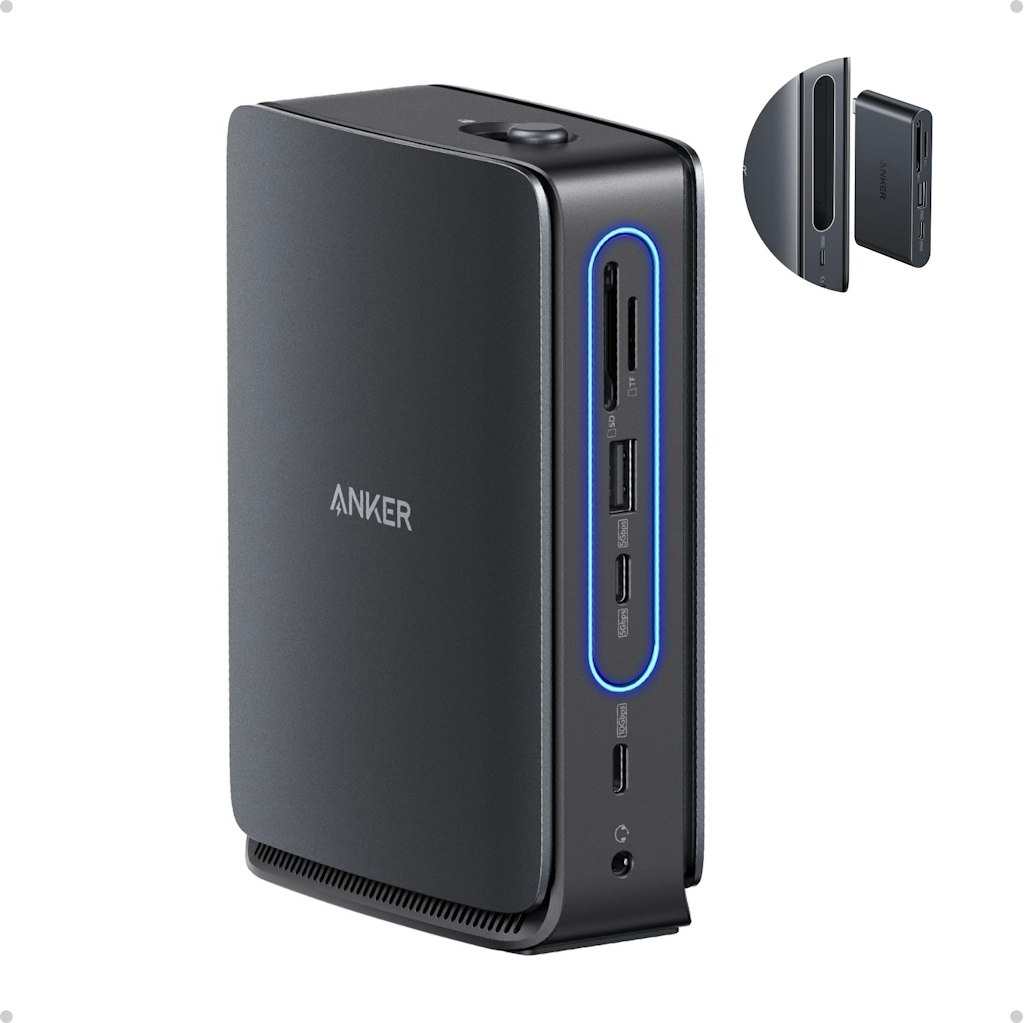
This Anker Nano docking station at Amazon is $50 off and matches its Amazon all-time low of $100. It splits into a desktop dock and a portable hub, so one unit covers both a home office and travel. Shipping is free. Buy Now at Amazon
Features
- 13 ports including 2 HDMI, 1 DisplayPort, Gigabit Ethernet, 3 USB-A, 2 USB-C data, and SD/microSD card slots
- Supports up to three monitors, or one 4K display at 60Hz
- Charges a connected laptop at up to 100W
- Includes a 140W power adapter and 3-foot USB-C cable
- 6-in-1 hub detaches for travel use
- 18-month warranty
Amazon · Verified 14 hrs ago
Up to 30% off
free shipping w/ Prime
more
↑ less
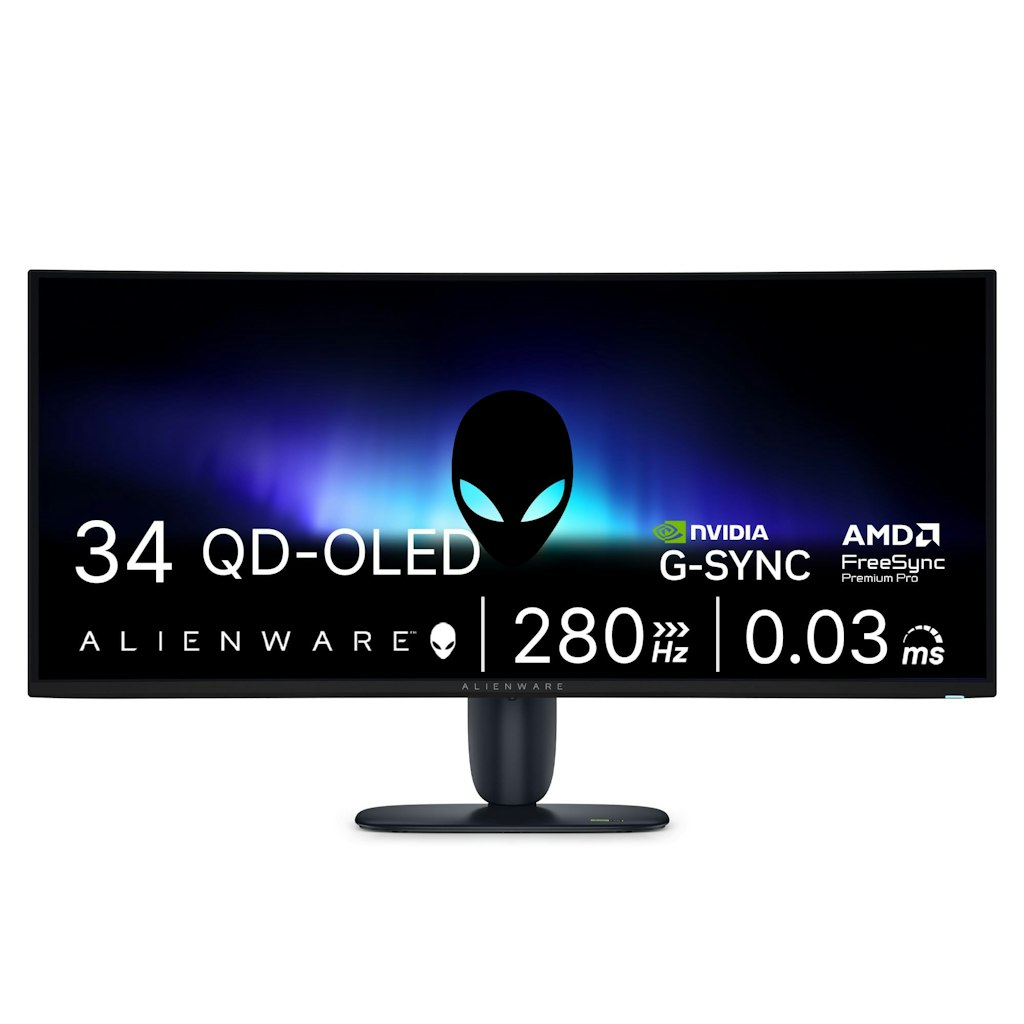
Amazon is offering Alienware gaming laptops, Aurora desktops, and monitors in one featured deals listing, along with Dell monitors and wireless keyboard and mouse sets. The 15" Alienware laptop with an RTX 4050 is $1,100, and a 27" Alienware WQHD monitor with a 180Hz refresh rate is $200. Dell 24" 240Hz gaming monitors start at $85, and keyboard and mouse sets start at $25. Shipping is free for Prime members. Shop Now at Amazon
Features
- Gaming laptops from $1,100 with RTX 4050, 5050, and 5060 graphics
- Aurora gaming desktops from $1,900 with RTX 5070 graphics
- Alienware gaming monitors from $180, including QD-OLED models up to 360Hz
- Dell gaming monitors from $85, with 240Hz refresh rates
- Dell wireless keyboard and mouse sets from $25
Amazon · Verified 14 hrs ago
Up to 57% off
free shipping w/ Prime
more
↑ less
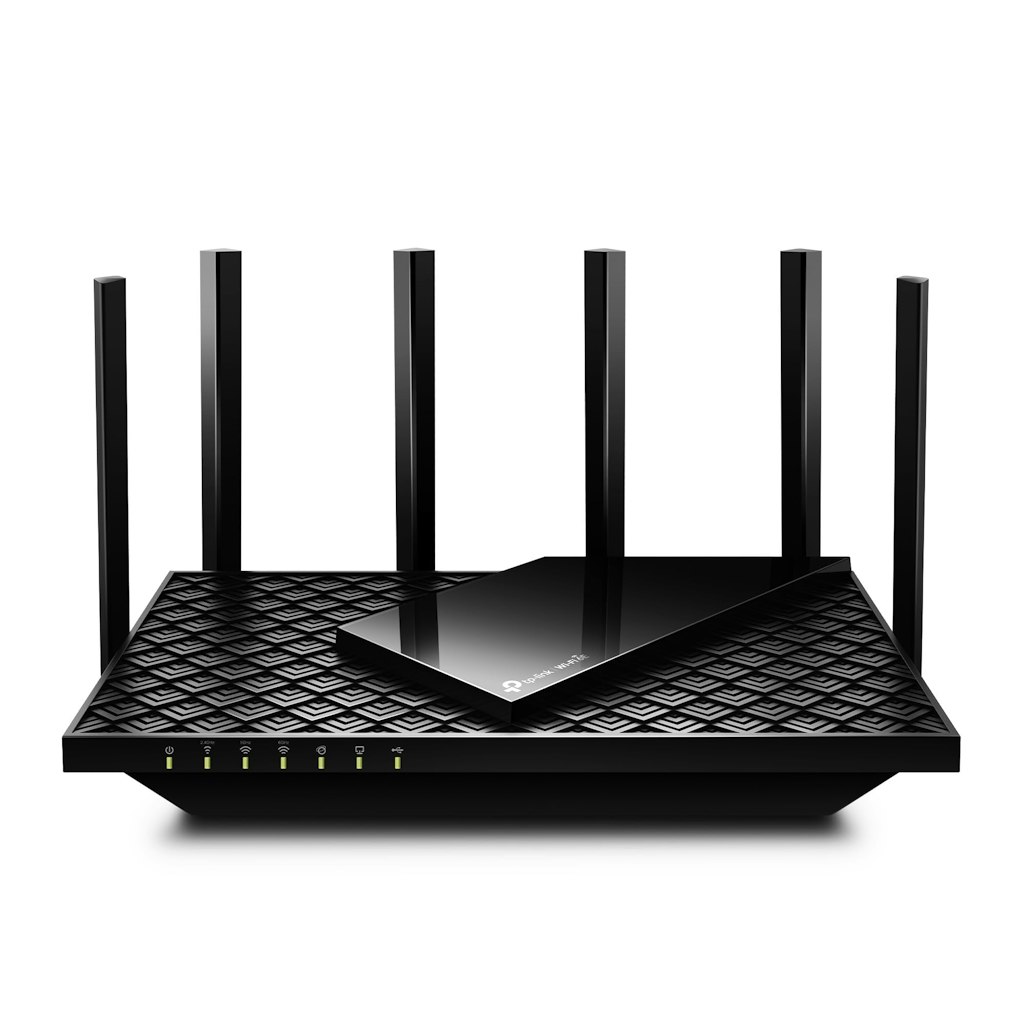
Amazon's Black Friday TP-Link sale tops out at 57% off. The sale covers routers, range extenders, powerline adapters, and PCIe WiFi cards for desktops. Shipping is free for Prime members. Shop Now at Amazon
Features
- WiFi extenders from $13
- WiFi 6 routers from $52
- Mesh WiFi systems from $142
- Desktop PC WiFi cards from $19
- Wi-Fi 7 routers, travel routers, and powerline adapters included
Amazon · Verified 14 hrs ago
Up to 39% off
free shipping w/ Prime
more
↑ less
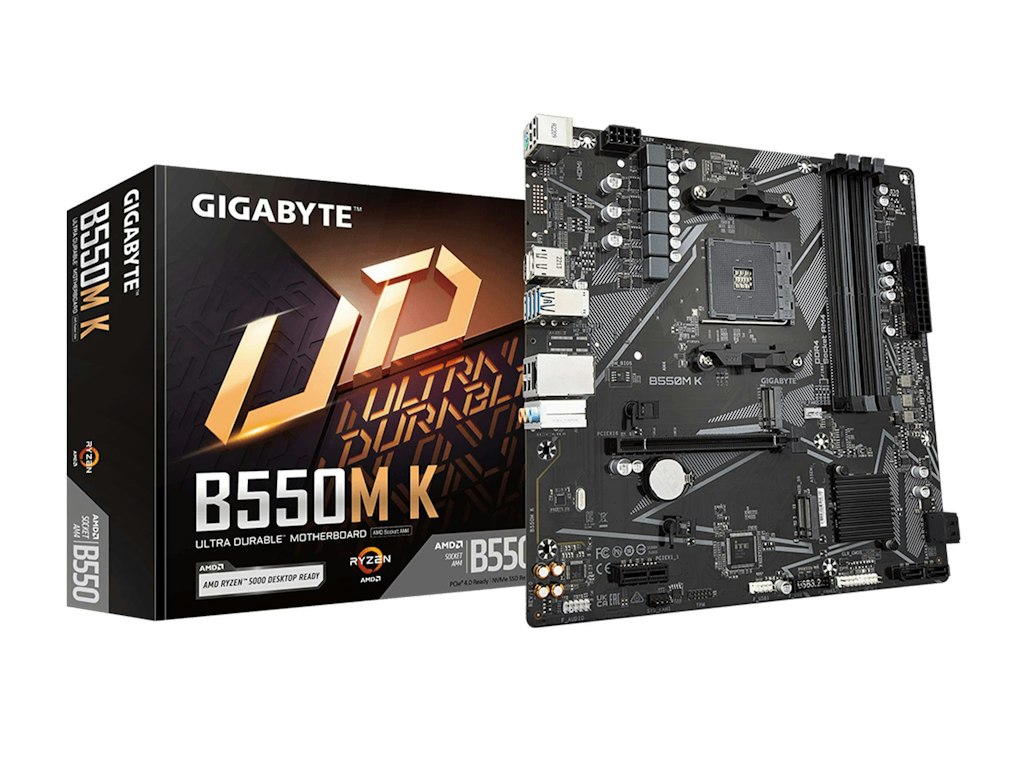
Amazon has Gigabyte PC parts and gaming gear discounted for Black Friday, with the B650 Eagle AX motherboard at 39% off, priced at $109. The 27" GO27Q24G OLED gaming monitor is 15% off at $297, and the 750W UD750GM power supply is 23% off at $69. The sale also covers gaming laptops, AORUS desktops, and liquid CPU coolers. Shipping is free for Prime members. Shop Now at Amazon
Features
- Motherboards from $59 to $259 for AMD & Intel processors
- Fully modular 750W to 1000W power supplies from $69
- 27" OLED & QHD gaming monitors from $175
- Gaming laptops & AORUS gaming desktops
- 360mm liquid CPU coolers from $72
Computers: The Basics
Shopping for computers doesn’t have to drain your savings — if you know how to find the best prices. Our team of experts review the sales and publish the best computer deals so you don’t have to work half as hard.
How to Save on Streaming Services
Computers: The Basics
Shopping for computers doesn’t have to drain your savings — if you know how to find the best prices. Our team of experts review the sales and publish the best computer deals so you don’t have to work half as hard.
Basic Computer Terminology
You don’t have to be a tech wiz to buy your next computer. Make note of these common terms to help you when you’re shopping computer sales!
- Operating System (OS): This is the system that controls how your computer performs basic functions. The most common operating systems you’ll see right now are Windows 10 and Mac OS X. They perform comparably, so picking one relies on personal preference.
- Random-access memory (RAM): The short-term memory of your computer. Your RAM controls how quickly and efficiently your computer is able to switch between tasks. The higher the RAM, generally, the better the performance.
- Processor (CPU): The powerhouse or “brain” of the computer, your processor handles your computer’s basic instructions, such as using your mouse and keyboard, or running applications. The two most popular CPU manufacturers are AMD and Intel. You can read about which processor is right for you in this article from Digital Trends.
- Storage: There are two types of physical computer storage, hard drives (HD) and solid state drives (SSD). SSD storage is more common these days because they are more stable and faster. While it’s ideal to aim for greater storage space, a bigger drive will cost more money. Determine your storage needs based on how you plan to use your computer. Abt recommends starting with at least 500 GB of storage space.
Additionally, some providers, like Verizon, offer streaming perks with select plans, giving you months of access to services like Disney+, Hulu, and ESPN+ at no extra cost. Annual payment options can also help you save, as they often come with a discount equivalent to getting one or two months free. For those on a budget, ad-supported plans provide the same great content at a fraction of the cost. Visit our Disney+ Subscription Cost page to explore pricing and options.
What Deals Are Available on Disney+ Bundles?
Disney+ bundle deals provide significant savings when combining services. For example, the Verizon Disney Bundle offered six months of Disney+, Hulu, and ESPN+ for free with select Unlimited plans. Bundles like the Disney+ Premium annual plan ($159.99) save you the cost of two months compared to monthly payments. Bundle options like the ad-supported Duo Basic plan (Disney+ and Hulu) start at $10.99 per month, while ad-free Duo Premium is $19.99. Learn more on the Disney+ Bundle Deals page.
You can also explore seasonal and promotional deals during events like Black Friday to maximize your savings. Check out the Best Disney+ Deals page for current offers.
How Much Is a Disney+ Subscription?
Disney+ subscriptions currently start at $8 per month for the ad-supported Basic plan, while the Premium ad-free plan is priced at $13.99 per month or $139.99 annually. Prices will increase beginning October 17, 2024, with the Premium plan rising to $15.99 per month or $159.99 annually. Explore all pricing options on the Disney+ Subscription Costs page.
Best Disney+ Deals
Disney+ offers value-packed streaming bundles, such as the Disney+, Hulu, and Max bundle starting at $17 per month with ads or $30 per month ad-free. Disney+ also supports paid sharing, allowing you to add one extra member for $6.99 per month with Basic or $9.99 per month with Premium. Prices are increasing on October 17, 2024, so finding deals like these is more important than ever. For more information, visit our Best Disney+ Deals page.
Annual Disney+ Subscription Costs
Disney+ Premium annual plans cost $139.99 but will rise to $159.99 on October 17, 2024. Opting for the annual plan saves you the equivalent of two months compared to monthly billing. Note that annual payments are only available for standalone Disney+ Premium plans and not for bundles. Customize your subscription to include ad-supported or ad-free options with Hulu, ESPN+, or Max. See all pricing details on the Disney+ Subscription Cost page.
Basic Computer Terminology
You don’t have to be a tech wiz to buy your next computer. Make note of these common terms to help you when you’re shopping computer sales!
- Operating System (OS): This is the system that controls how your computer performs basic functions. The most common operating systems you’ll see right now are Windows 10 and Mac OS X. They perform comparably, so picking one relies on personal preference.
- Random-access memory (RAM): The short-term memory of your computer. Your RAM controls how quickly and efficiently your computer is able to switch between tasks. The higher the RAM, generally, the better the performance.
- Processor (CPU) : The powerhouse or “brain” of the computer, your processor handles your computer’s basic instructions, such as using your mouse and keyboard, or running applications. The two most popular CPU manufacturers are AMD and Intel. You can read about which processor is right for you in this article from Digital Trends.
- Storage: There are two types of physical computer storage, hard drives (HD) and solid state drives (SSD). SSD storage is more common these days because they are more stable and faster. While it’s ideal to aim for greater storage space, a bigger drive will cost more money. Determine your storage needs based on how you plan to use your computer. Abt recommends starting with at least 500 GB of storage space.
Basic Software for Your PC
When you start using your new computer, you’ll want to install some basic software to get going. Most pre-built computers come with a suite of software pre-installed with the OS.
Productivity Tools
Whether you opt for a package like Microsoft Office or iWork, opt for freeware like Open Office, or choose an online software pack like G Suite, it’s always a good idea to install a productivity software to help you with tasks like making spreadsheets, word processing, and viewing PDFs.
Internet Browser
Microsoft Edge and Safari are the standard browsers that come with a new computer, but many shoppers rely on browsers like Google Chrome or Mozilla Firefox.
Cloud Storage
Not only does cloud storage give you more space than the limited physical storage on your PC, but it also gives you access to your files anywhere. Many companies like Google or Dropbox offer a limited amount of free cloud storage.
Antivirus Software
Antivirus tools do more than simply keep viruses at bay; they also protect against malware, phishing, adware, spyware, and more. Windows 10 comes with Microsoft Security Essentials as a default, and security options are built into Mac OS X (as opposed to a standalone program). That said, antivirus suites like Norton, McAfee, and Bitdefender may offer you more protection.
Media Player
Many laptops and desktops no longer include a physical media drive. If you plan on watching any videos locally (not streamed online), it’s useful to have a media player. Typically, this software is built in, but check out this list for some info on the best media players for Windows 10 and this one for Mac.
Music Player
Not to be confused with a media player, a good music application is worth installing on your computer. Spotify, iTunes, and Pandora are some common favorites that give you access to a practically limitless selection. The desktop versions make it easier to browse and build playlists.
Computer Deal Subcategories
DealNews offers the best deals on computers and computing accessories. You can browse our deals in different categories including, but not limited to:
Whether you’re looking for a new work laptop, or want to find a quality gaming system, check out our selection of the best laptop deals here.
Did you know you should replace your computer every 4 to 5 years to keep up with the latest performance and security updates? Check out the best computer deals for your next desktop here.
Did you know that DealNews first launched as a deal website for Apple Macintosh products? While we’ve grown significantly since then, we still know how to find the best Apple computer deals!
Maybe you’re in the market for a larger streaming device for your kids, or maybe you’d like a device to serve as your e-reader (with a few extra perks). Whatever you’re searching for, check out the best tablet and iPad deals here.
- Peripherals
Routers , monitors , input devices , and more! These devices make using your computer more comfortable and practical. Be sure you search our site to save big!
When shopping computer sales, check out DealNews before going anywhere else, so you know you’ll always find the best deals!
Frequently Asked Questions
Should I purchase a laptop or desktop?
It’s important to review your needs before buying a laptop or desktop computer.
- What’s your budget? Because they’re bigger and more modular, desktop computers tend to outperform laptops. A desktop’s customizability means your budget can go a lot further. However, laptops have other advantages over desktops.
- Do you need portability? High-end laptops are generally more expensive, but a laptop will always win the portability debate.
- How much power do you need? Desktops have more room to work with, so you can add more RAM, more storage, a bigger graphics card, and other performance improvements. But if you don’t need all that, then a mid-tier laptop may be the cheaper choice.
- Are you a gamer? Laptops that are built for gaming are among the most expensive on the market. That said, if you’re not comfortable selecting individual pieces to build a gaming desktop, you may be willing to pay a premium to get that performance.
- Don’t forget the repairs. If you’re handy, you can often repair or replace parts in a desktop computer with the help of online guides. Most laptops require specialized tools and skills to repair, so desktop fixes tend to be cheaper.
Overall, desktop computers have a lot of advantages, but the lack of portability can be a deal breaker. No matter what you decide, be sure to check out specs and buying guides from the DealNews Blog and other reputable sources like CNET or PCMag. Then shop DealNews for the best computer deals!
How do I get my external hard drive to show up?
Once you’ve ensured that your external drive is plugged in and powered on, check out these steps from PCMag:
- Try a different USB port.
- Try a different PC.
- Update your drivers.
- Format the drive.
What is a VPN?
VPN stands for “virtual private network.” A VPN protects your internet usage by routing your internet connection through a private server. Using a VPN keeps your online browsing more private and also grants you access to websites and content that may not be available in your country.
For more information about VPNs, visit our NordVPN Free Trial Guide and our NordVPN Subscription Cost Page.
How can I boost my WiFi signal?
When your internet connection seems impossibly slow, the cause isn’t your provider, but your WiFi signal strength. Check out these options to boost your WiFi signal:
- Update your router firmware. Each router is different, but you can typically use the steps found here to run updates.
- Place your router in the most optimal space. You want to place your wireless router away from walls or obstructions. If possible, put it in the most central place in your home.
- Pick a different frequency. If you have a dual-band router, try using the 5GHz band. This band offers higher speeds and may get an additional boost if fewer devices are connected to it.
- Change the channel. While most routers will automatically choose the channel with the least congestion, some cheaper routers may require you to manually update it.
- Upgrade your router. How old is your current router? If it's a previous-generation 802.11b model, upgrading could improve your wireless signal. If you already have a newer 802.11n or Wi-Fi 6 router, you're in good shape.
- Replace the antenna. You may boost your signal by adding or replacing an external antenna. PCMag recommends purchasing one marked “high-gain” and opting for a directional antenna rather than an omnidirectional one.
- Add a wireless range extender. If you only want to boost coverage in one or two rooms, a WiFi extender can help you eliminate dead spots. Check out this guide from the DealNews Blog.
Switch to a mesh WiFi system. Wireless mesh networking is becoming more popular because it can provide more complete coverage throughout the home. Mesh systems replace your router and work seamlessly to eliminate coverage gaps.
By: Kristen Harris, Manager
A Georgia girl with three years of experience in IP Law and grounded in understanding marketing and consumer motives. When she's not working with the fabulous staff of DealNews, you can find her whining at rowing practice and browsing the Hot Deals on the site.
Want to know the moment we post a great deal on Computers?
Create an Alert